ArkaOS
Developer preview — not ready for everyday use

A Linux desktop that sets up your privacy, and shows you where it stands.

ArkaOS turns on common privacy settings for you, tells you plainly whether each one is in place, and keeps your previous system on disk when it updates. It’s built on Fedora and KDE Plasma.
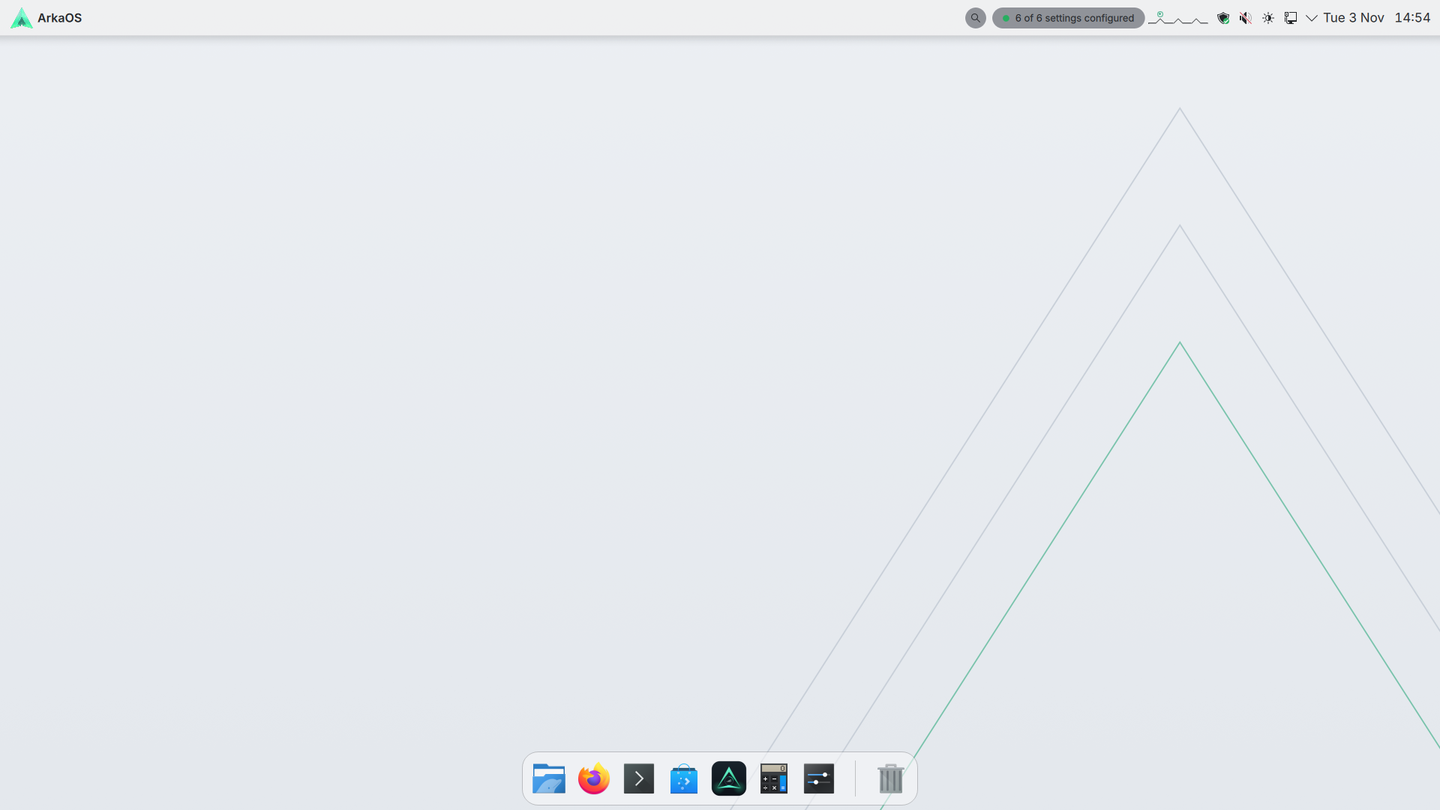
The ArkaOS desktop in its light look: a slim top bar with the date and system tray, the ArkaOS Dock at the bottom, and a pale wallpaper with the ArkaOS triangle drawn in thin lines.
The ArkaOS desktop in the light look, from a test in a virtual machine. You choose light or dark during setup.

See it in a minute

From switching it on to the Privacy dashboard: setup, choosing light or dark, and your desktop. Recorded in a virtual machine; nothing is sped up except waiting.

No captions are spoken; on-screen labels say what each step is.

Convert a file from the right-click menu

Right-click a file in Dolphin and open the format wheel. It shows only the formats that file can become, and the converted copy is saved next to the original. This 20-second clip is made from screenshots taken in a virtual machine, with a caption on each step. It is not a live recording.

A picture, 346 KB as a PNG, saved as a 14 KB WebP. The original is not changed.

What it is

Privacy settings, already on

Settings you’d normally look up and change by hand are set when the system starts, and checked again while it runs. If one stops being in place, ArkaOS says so.

Updates that wait for you

A new version is prepared next to the one you’re using and takes over only when you restart. Updates never restart your computer on their own, and the previous version is kept on disk. If a new version fails its start-up checks, or doesn’t start at all, ArkaOS tries it three times and then goes back to the previous version by itself.

Plain answers, no score

The Privacy dashboard lists each setting as Configured or Needs attention and when it was last checked. It never gives you a percentage or says you’re “protected”.

Working with your files

Right-click a file in Dolphin, or drag it and press a key for a ring of choices. Each job runs in a sandbox with no network access, and the result is a new copy next to the original. Nothing is overwritten.

Convert to another formatPictures to PNG, JPEG, WebP or PDF. A PDF to one picture per page, or to a Word file (the layout will differ). Sound to MP3, FLAC, WAV, Ogg, Opus or AAC. Video to MP4, MKV or WebM, or just its sound. Word and Excel files to PDF.
Tested in a VM
Make smallerPictures, sound, video and PDFs, at Light, Medium or Strong, or to fit under 10 MB or 25 MB. A copy is kept only if it really is smaller. The levels and size targets are new.
Partly tested
Remove hidden detailsSaves a copy without the details you can’t see, such as where a photo was taken or who wrote a document, using mat2. It removes what mat2 knows about, not what is in the picture or sound itself.
Tested in a VM
Edit a pictureCrop, black out parts, annotate (pens, arrows, boxes, highlights and text), add a background, rotate. Black out replaces the pixels in the copy, so what was under a box can’t be read back from it. Annotate is new.
Partly tested
Find private textReads the words in a picture on this computer and suggests boxes over text that looks like an email address, a phone number or a card number, for you to check and black out. It can miss some, so look before you save.
Seen working in a VM
Read the text in a picture or PDFSaves the words it finds as a text file. Text recognition makes mistakes, more so on poor scans.
Checked with tests
Edit sound and videoTrim, split in two, join several into one, and bleep out parts, with playback so you can hear the part before saving. Trimmed, split and bleeped copies keep the file’s hidden details; use Remove hidden details if you don’t want them.
Partly tested
Format wheel and edit wheelDrag a file and press Meta+Alt+C for a ring of the formats it can become, or Meta+Alt+E for a ring of edits. The right-click menu opens the same rings for clicking.
Tested in a VM

“Partly tested” means some of it was used in a VM and the rest so far only by automated tests. “Checked with tests” means automated tests only.

Your desktop

KDE Plasma underneath, with ArkaOS’s own setup, dock, launcher and settings on top. Everything stays changeable.

Setup that asks firstLight or Dark, a green or blue accent, your time zone (type any part of its name), a computer name, then a short practice with the format wheel.
Tested in a VM
Dock, launcher and top barA dock at the bottom instead of a taskbar, a launcher with search behind the Meta key, and a top bar on every screen with the privacy status.
Tested in a VM
Night light and reduce motionWarmer colours from 8 pm to 6 am on fixed times, so no location is asked for, and a switch that turns off most animations.
Tested in a VM
Keyboard shortcuts pageMeta+/ lists the shortcuts. In a VM we pressed 19 of the 24 listed shortcuts and they did what the page says; the rest were not checked.
Tested in a VM
VARA and Git, if you want themUnder Advanced options, setup can install VARA, version control with undo and integrity checks, and set up Git. VARA’s Hub, a web view only this computer can reach, is off until you switch it on. This VARA version passed its own tests but hasn’t been tried inside ArkaOS yet.
Not yet in ArkaOS

The privacy settings

What each one does, in plain words, and how far we’ve tested it.

Encrypted DNSWebsite-name lookups are sent encrypted (to Quad9). On a network that blocks this, you can allow unencrypted lookups on that network only, and the dashboard says so (this option is new and still being tested).
Tested in a VM
Private network addressUses a random hardware (MAC) address on networks, so networks see a different device ID.
Tested in a VM
Computer nameSetup asks for a name for this computer. The default, “arka”, is the same on every ArkaOS computer, so the name alone doesn’t point to your computer. A name you choose yourself might.
Tested in a VM
Temporary IPv6 addressesUses IPv6 addresses that change over time.
Tested in a VM
Sandboxed browserFirefox runs in a sandbox that can see your Downloads folder but not the rest of your files.
Tested in a VM
FirewallRejects connections other computers try to open to this one.
Tested in a VM
Kernel hardeningStricter memory and kernel settings that make some attacks harder.
Tested in a VM

“Configured” means a checked setting is in place. It doesn’t mean you can’t be tracked: websites, accounts and apps can still identify you.
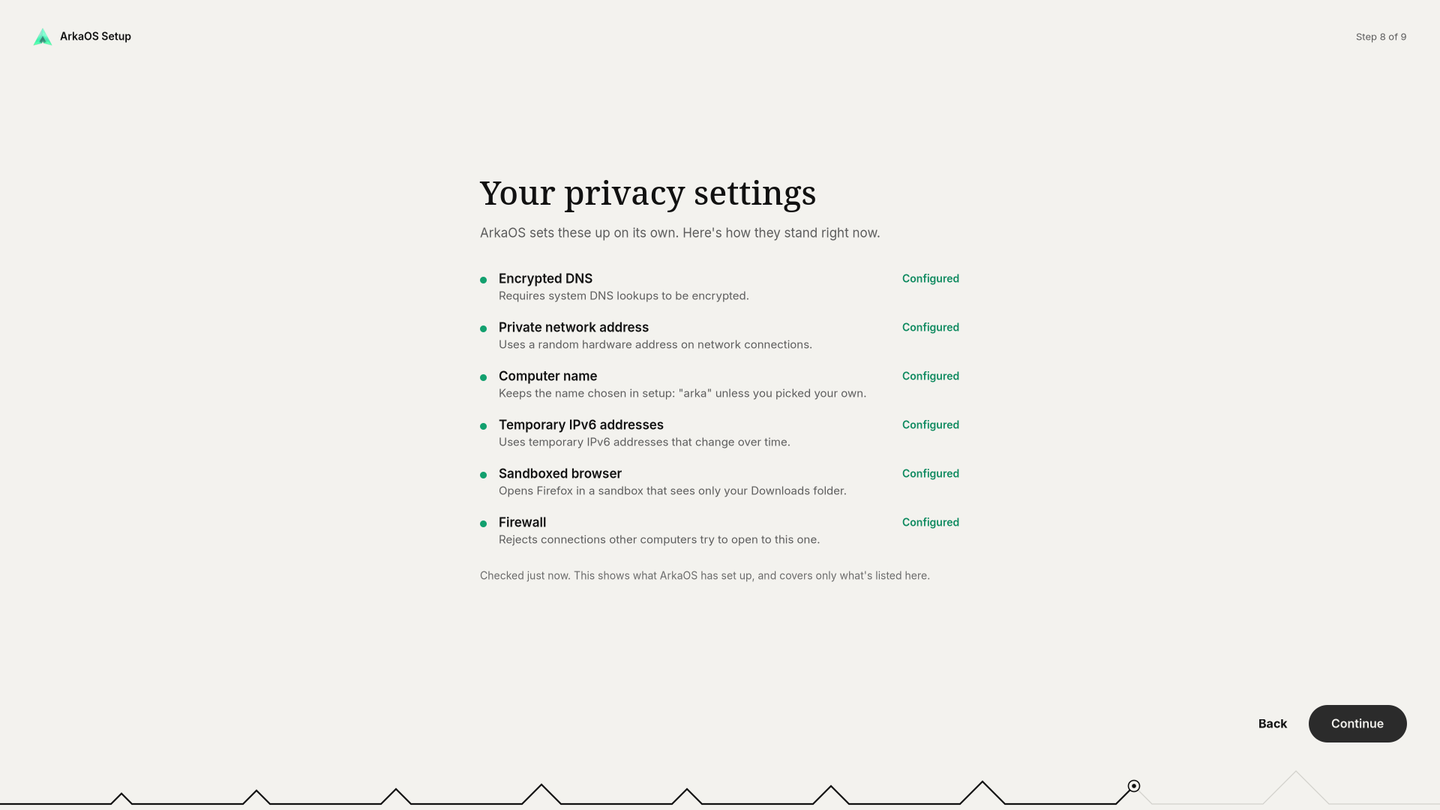
The last step of ArkaOS setup, titled Your privacy settings, listing six settings including the firewall, each marked Configured, with the note Checked just now.
Setup shows where each setting stands before you start.
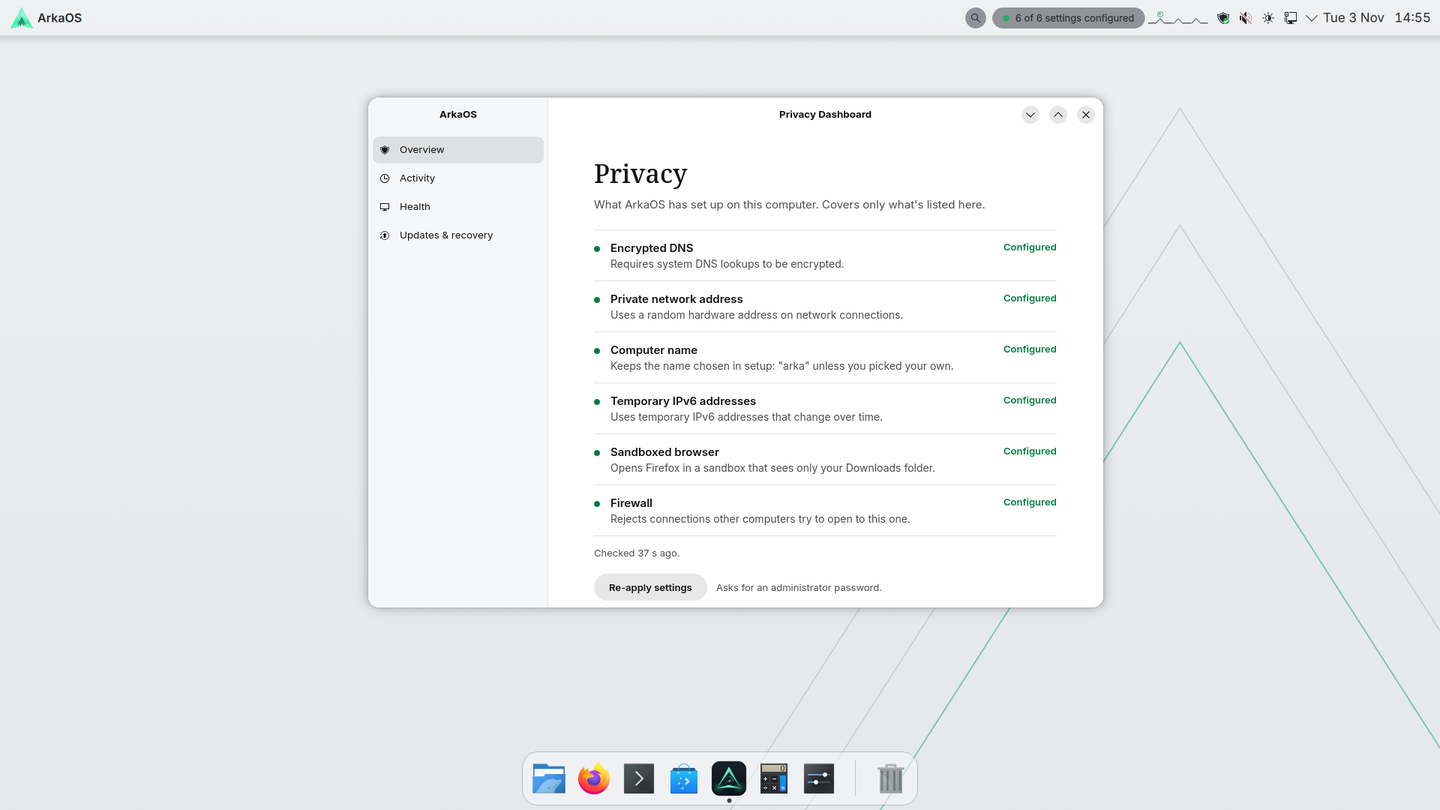
The ArkaOS Privacy dashboard listing six settings, each marked Configured, with the note Checked 44 seconds ago.
The Privacy dashboard, any time afterwards.

What we can show, and what we can’t

Every item sits in exactly one column. We move something left only after testing it.

Tested

  • The privacy settings above marked “Tested in a VM”
  • Setup with a light or dark look, then your desktop
  • Read-only system files at runtime
  • Going back to the previous version on its own after a broken update, keeping a good update, and going back by hand with one command (in a VM on 11 October 2026; the first two also on one real laptop on 12 October 2026)
  • Booting from USB on one laptop (an earlier version)
  • Converting, shrinking and cleaning files, and the format and edit wheels (in a VM)

Being tested

  • Updates and going back on real laptops
  • More real laptops
  • The newer file tools: annotate, split, join, bleep, and reading text from pictures
  • arka-pulse, which watches system health locally. Its predictions are estimates and it takes no action on its own.

Not yet

  • A downloadable installer. One with disk encryption on by default is built and works in a VM, but isn’t published yet.
  • Secure Boot with ArkaOS’s own keys
  • Support for a wide range of hardware
  • Anonymity of any kind. ArkaOS doesn’t hide who you are online.

Try it

There’s no installer to download yet. A virtual machine is the safest way to look around.

In a virtual machine

Recommended. Nothing touches your computer’s disk.

Getting started →

From a USB stick

For testing only. It has run on one laptop so far; Wi-Fi, graphics or sleep may not work on yours.

USB notes →

Build it yourself

The whole system is one container image.

podman build -t arkaos:dev .
Build guide →